> ## Documentation Index
> Fetch the complete documentation index at: https://docs.benevolus.ch/llms.txt
> Use this file to discover all available pages before exploring further.
# Add time slots
> Add time slots to a post: capacity, start and end times, and a description.
A time slot is a shift on a post, with a number of places. Volunteers sign up for it, and it appears on the printable schedule.
You need to be an **organiser**, and the post must already exist.
In the **Posts** tab, open the post (**View details**), then, under **Time slots**, click **Add a time slot**.
Enter a **title**, the **number of volunteers** (available places), the **start and end date and time**, and an optional **description**.
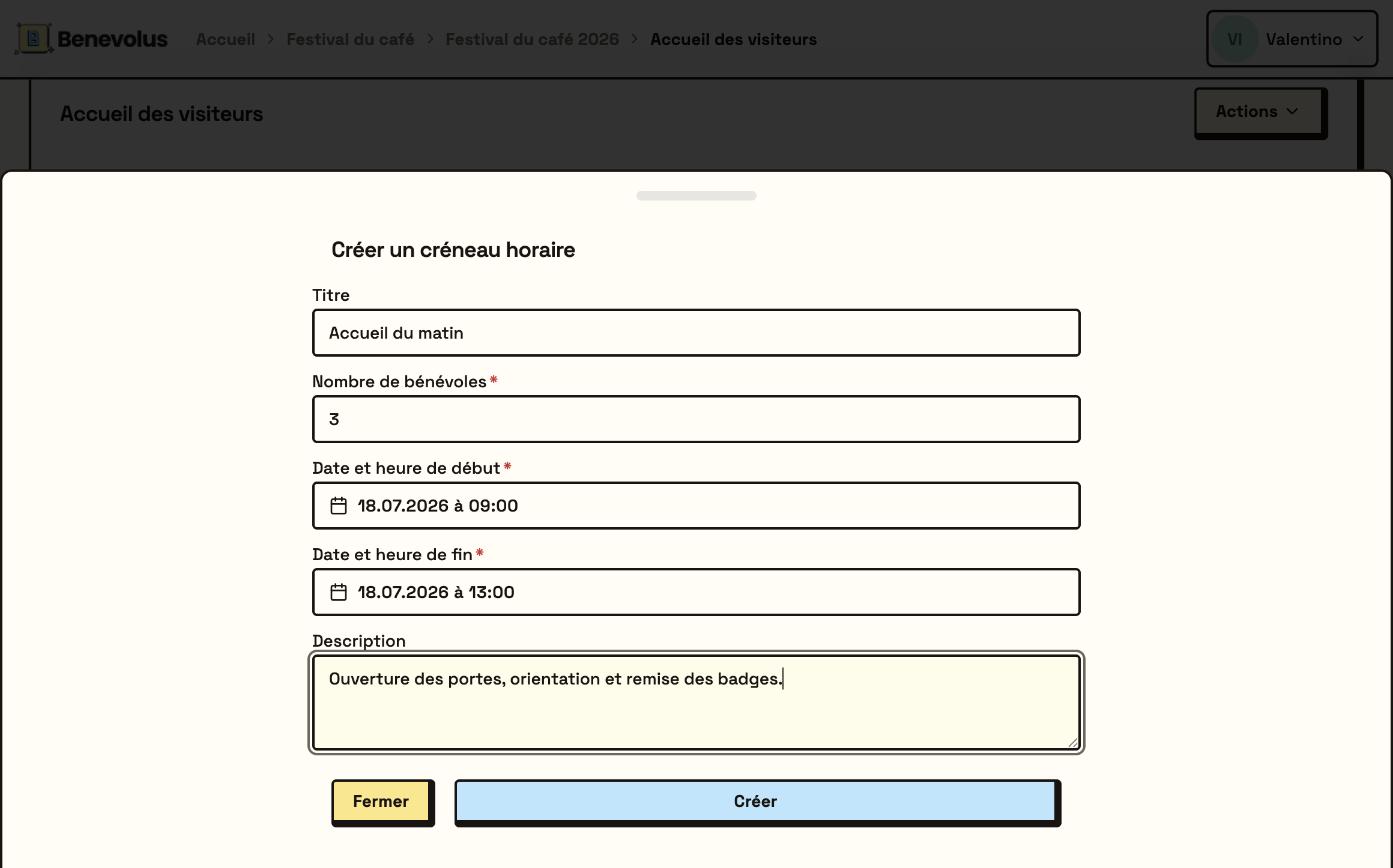 Click **Create**. The time slot shows with its sign-up counter (for example **0/3**).
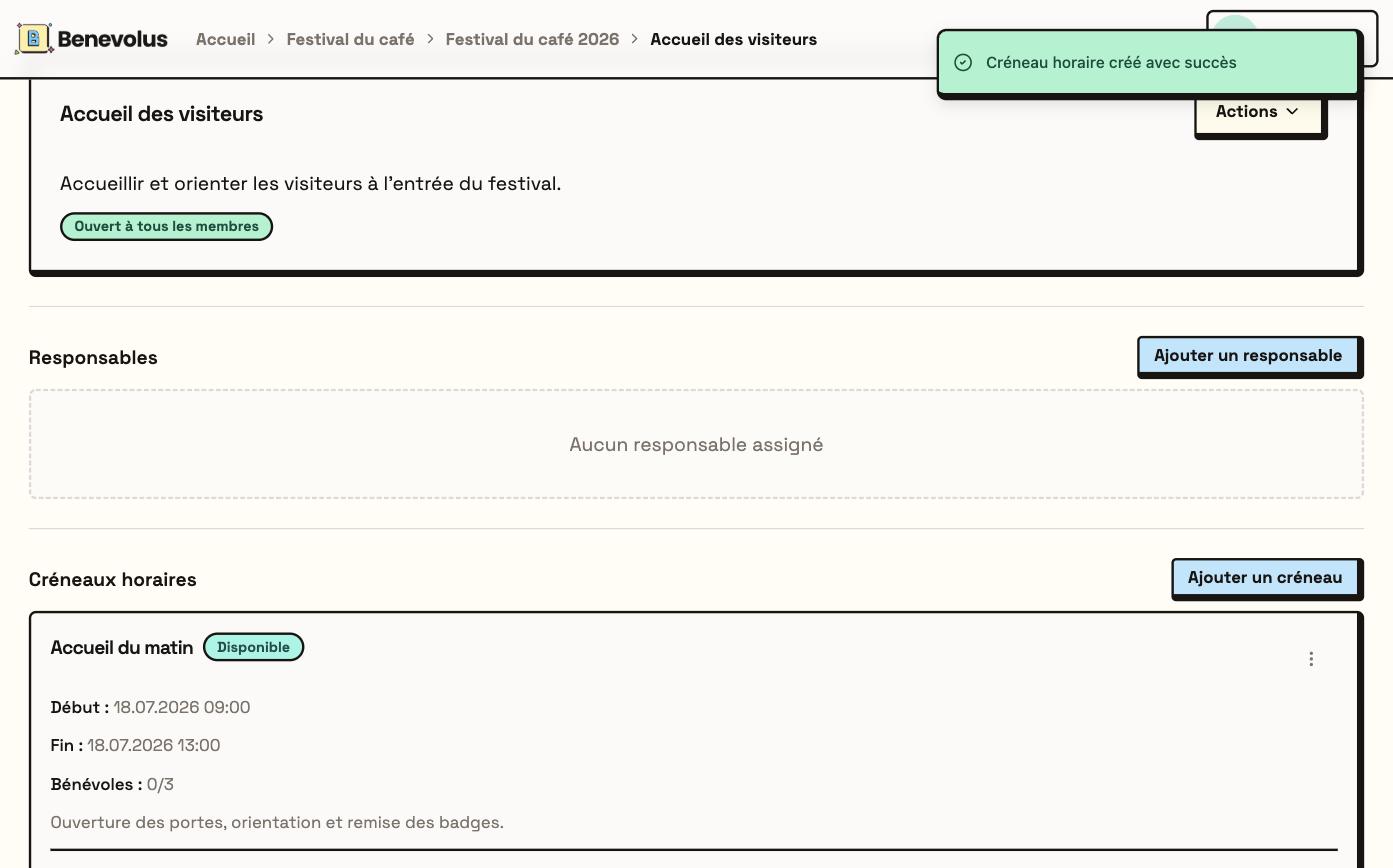 Repeat for each shift. You can also register a member yourself with **Add a volunteer**. Then [print the schedules](/en/print-schedules) for your posts.