> ## Documentation Index
> Fetch the complete documentation index at: https://docs.benevolus.ch/llms.txt
> Use this file to discover all available pages before exploring further.
# Create an event
> Create an event in your Benevolus organisation: name, description and start and end dates.
An event is the starting point in your organisation: it groups the positions, time slots and volunteers you'll manage.
You need to be an **organiser** of an organisation to create an event. If you don't have one yet, create your organisation first.
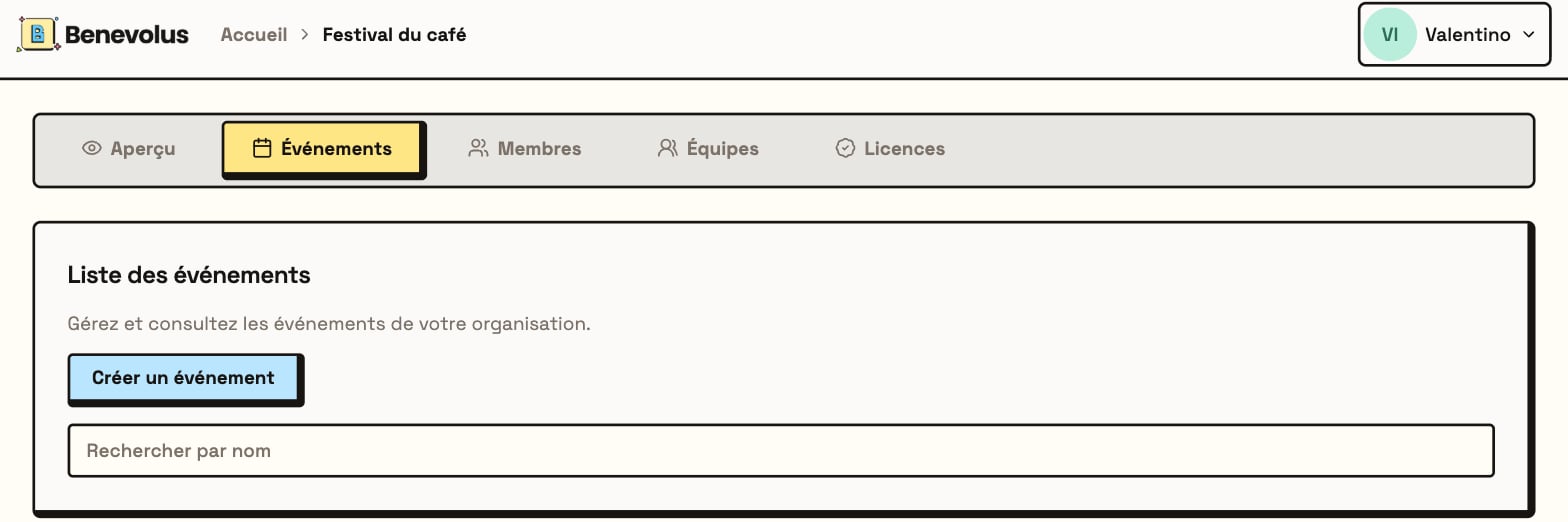
From your organisation, open the **Events** tab, then click **Create an event**.
 Give your event a **name**, add a **description**, then pick the **start and end date and time**.
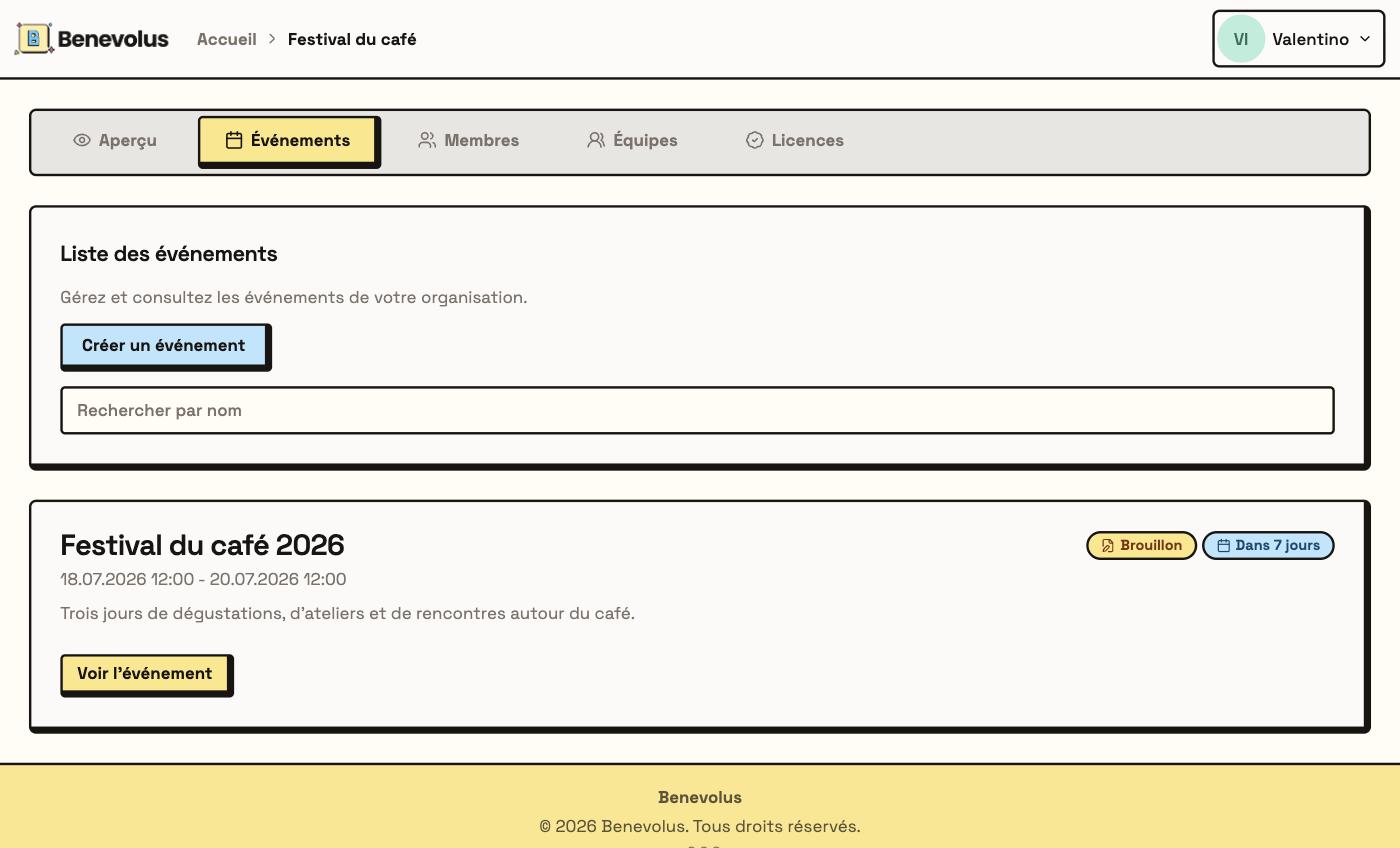 Click **Create**. Your event appears in the list with the **Draft** status.
 Your event is created as a **draft**. Add **positions** and their **time slots**, then click **Publish event** to open sign-ups to your volunteers.