

Install the app
On iPhone and iPad
Installing goes through Safari. Other browsers cannot add an app to the home screen.1
Open Benevolus in Safari
Go to
app.benevolus.ch and sign in.2
Tap Share
The button sits at the bottom of the screen.
3
Choose “Add to Home Screen”
Scroll down the list until you reach that line.
4
Tap “Add”
Top right. The Benevolus icon appears on your home screen.
On Android
1
Open Benevolus in Chrome
Go to
app.benevolus.ch and sign in.2
Open the browser menu
The three-dot button, top right.
3
Choose “Install app”
Depending on your browser version, the line reads “Add to Home screen”.
If you opened Benevolus from Instagram, Gmail or another app, installing is not offered. Open the link in Safari or Chrome, then start again.
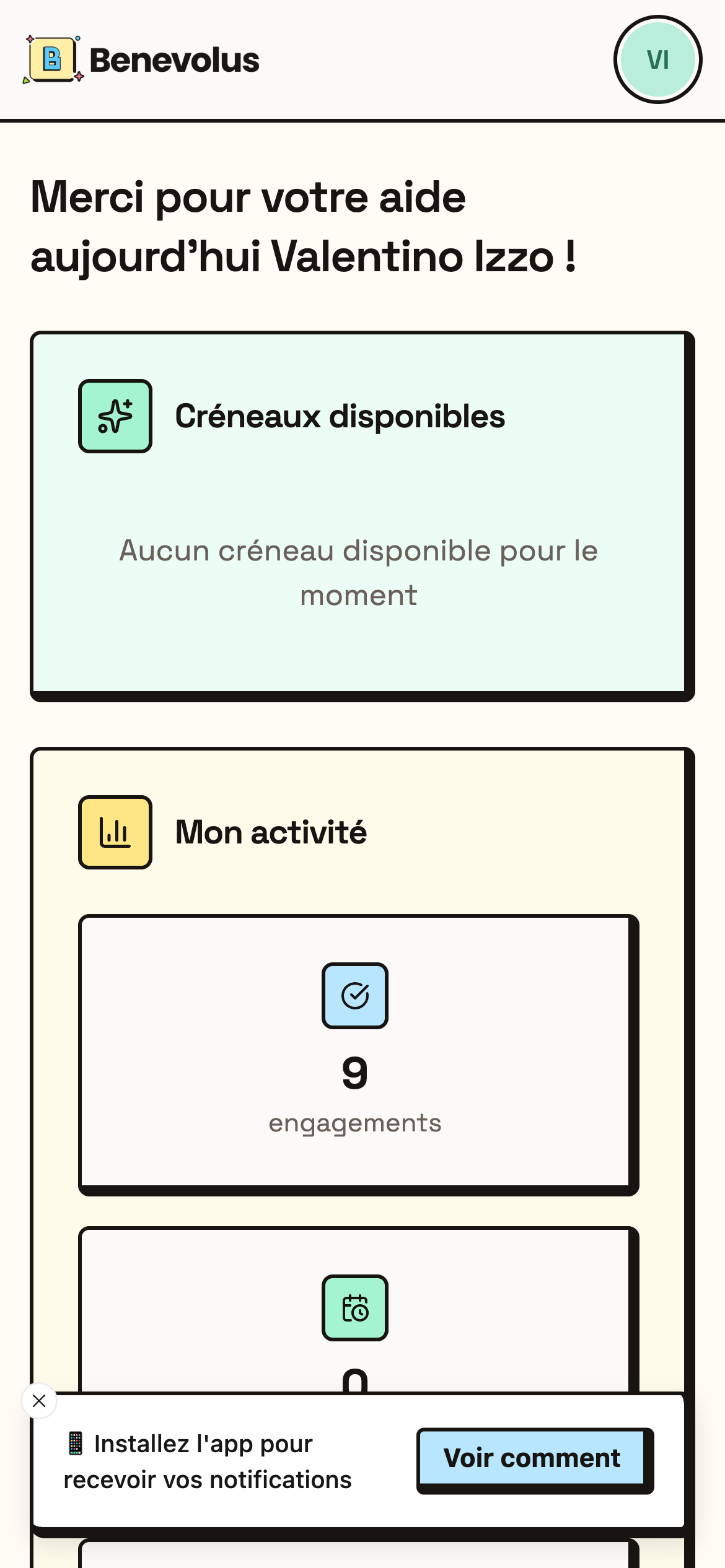
The install prompt inside the app
Turn on notifications
On iPhone and iPad, notifications only work once the app is installed on the home screen.
1
Open your profile
Go to the Notifications section.
2
Click Enable
Your phone asks for permission. Accept it.
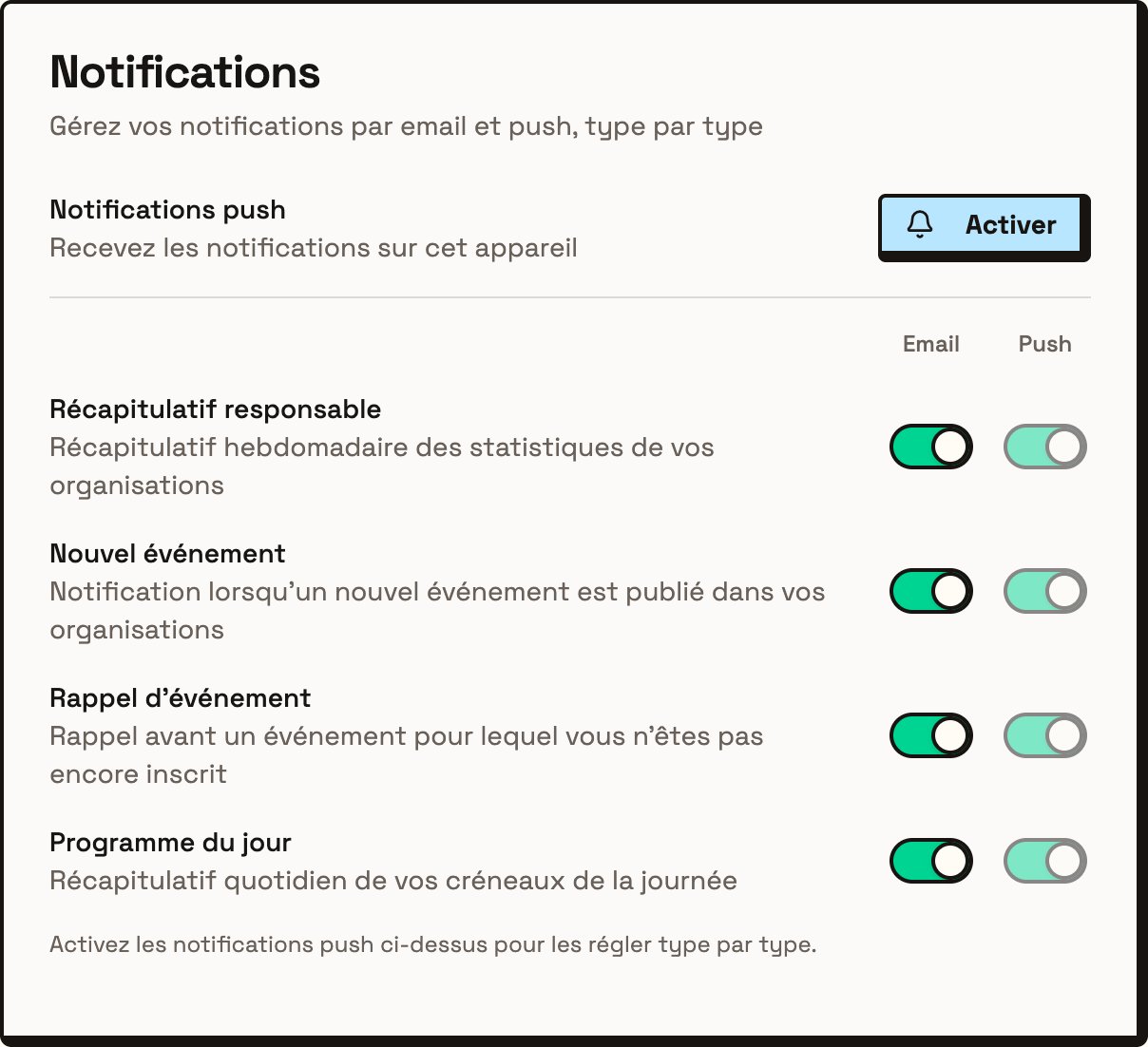
Turning on notifications in your profile
Turning them on applies to the device you are using. If you use Benevolus on your phone and on your computer, turn notifications on for each one.
What you receive
In your profile, choose for each type whether you want to receive it.